Hands-on Copilot: Writing Stata in VS Code
From the do-file editor to AI-assisted coding
Workshop on AI in Social Science Research
July 22, 2026
Meet Copilot
How do you write Stata today?
Stata’s built-in do-file editor
- Little to no autocomplete
- Every variable, macro, and result typed by hand
- Stata 15 and earlier: not even command completion
- Forgot an option? Back to
help
Where we’re moving today
- VS Code + a Stata extension
- Syntax highlighting and snippets
- GitHub Copilot inline completions
- Send code to Stata with one keystroke
The pain of writing Stata is rarely the statistics. It’s the typing, over and over.
Three tiers: chat → autocomplete → agent
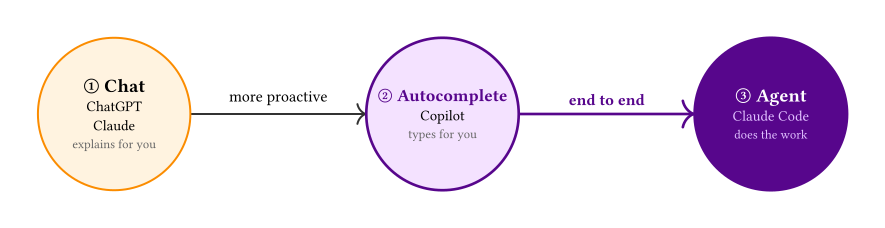
We start at ② autocomplete. You still control every line; you just type faster.
Later today: ③ agents. One sentence, and it reads the data, writes the code, and delivers results.
What is GitHub Copilot?
What it is
- AI inline completion inside your editor
- Grey “ghost text”; press
Tabto accept - Guesses from the context around your cursor
- Lives in VS Code; you never leave the editor
How it differs from a chatbot
- Chatbot: switch to a browser tab and ask
- Copilot: picks up right where you’re typing
- No context switch; it completes as you go
- Free for verified students and teachers
In short: Copilot is predictive text for code. You start the line, it finishes it; you decide, and Tab seals it.
Getting the most out of Copilot
Six core techniques
① Comment first Write one comment saying what you want, then let it complete.
② State the goal up top A header comment on the file’s purpose gives Copilot the big picture.
③ Take small steps One line at a time: accept, then write the next comment.
④ Show an example Put an “input → output” sample in the comment; it will follow suit.
⑤ Name things clearly Long names are fine. Cryptic names are not.
⑥ Open related files Copilot reads your open tabs to understand the context.
Choosing your statistics language
The same comment-as-prompt trick works best in languages with plenty of training data:
R · dplyr
▌Python · pandas
▌Accept, cycle, chat: the shortcuts
| Action | Shortcut (Windows) |
|---|---|
| Accept suggestion | Tab |
| Dismiss | Esc |
| Accept next word | Ctrl + → |
| Next / previous suggestion | Alt + ] · Alt + [ |
| Trigger a suggestion | Alt + \ |
| Open completions panel (several options) | Ctrl + Enter |
| Inline chat | Ctrl + I |
Try it: write a comment → watch the grey completion → press the keys below (each click demos one key).
▌When one completion isn’t enough, inline chat (Ctrl + I) + slash commands give you targeted operations:
/explain · /fix · /tests · /doc.
Setup: VS Code + Stata
Why VS Code instead of Stata’s own editor?
Stata’s built-in autocomplete has long been weak, and it depends heavily on your version:
| Stata version | Built-in completion | What it completes |
|---|---|---|
| ≤ 15 | None | Nothing at all |
| 16 – 18 | Partial | Commands / keywords / brackets; no variable names |
| 19 / StataNow | Fairly full | Commands + variables + macros + stored results |
VS Code + Copilot levels the field: whether you run Stata 14 or Stata 19, you get inline AI completion.
Three-step setup (Windows)
1
Install VS Code + a Stata extension. We recommend Stata All in One (highlighting + completion + run + data browser), or the lighter vscode-stata / stataRun.
2
Register Stata’s Automation interface (once, so VS Code can send code to Stata):
← This uses Stata’s long-standing Automation API, so it works on older versions too.
3
Enter the Stata executable path in the extension settings. For example, C:\Program Files\Stata18\StataMP-64.exe (older versions often live in Program Files (x86)).
Make .do files Stata + install Copilot
Install GitHub Copilot and sign in
- Search the Extensions panel for GitHub Copilot and install it
- Sign in with your GitHub account (students and teachers: claim free access via GitHub Education)
- Open a
.dofile and start typing → watch for grey text
Tab accepts, Esc dismisses, Alt+] shows the next suggestion.
Running code: sending your .do to Stata
| Action | vscode-stata | stataRun |
|---|---|---|
| Run selection / current line | Shift + Enter |
Shift + Ctrl + S |
| Run whole file | Ctrl + Shift + D |
Shift + Ctrl + A |
| Run from cursor down | – | Shift + Ctrl + D |
The code runs in a real Stata window alongside, so results, graphs, and r()/e() behave exactly as usual. Shortcuts vary by extension; check the one you installed.
Hands-on: World Values Survey
The data: World Values Survey
World Values Survey
- Cross-national, repeated survey of values and attitudes
- Trust, religion, political participation, gender norms…
- Wave 7 covers 60+ countries and territories
- One of the most widely used cross-national datasets in social science
Goal: use Copilot in VS Code to take WVS through cleaning → description → regression, all in Stata.
Copilot writes the cleaning + descriptives
Three moves on one slide: a comment yields a command, a few keystrokes complete a line, and context suggests the next step (WVS Wave 7 placeholder variable names):
▌▌▌▌Copilot writes the regression
A logit of institutional trust. The second line flips the script: you write the command, Copilot writes the comment (placeholder variables):
▌▌▌Copilot’s limits
Where Copilot falls short on Stata
Why it struggles with Stata
- Stata code is scarce in training data (few do-files are public)
- Stata has no language server, so it can only guess from text
- It invents commands and mixes in SAS / R syntax
- The more obscure the command, the more likely it fails
Real failures
- Asked for a weighted variance, it made up a nonexistent
pwvariancecommand - It borrows function names from other languages
- Coefficients and options are right only some of the time
Sources: Ozier (World Bank), Goldsmith-Pinkham, and other public tests
The iron rule: Copilot gives you a draft, not an answer. Run and check every line yourself.
From chat and autocomplete to agents
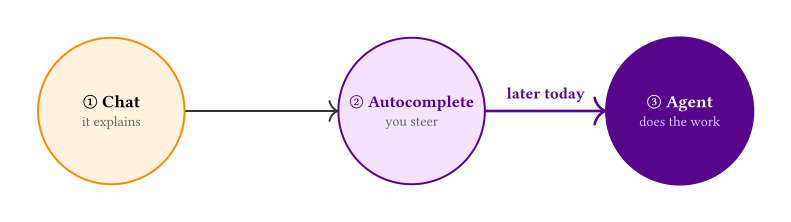
Chat · ChatGPT / Claude explain errors and suggest approaches.
Autocomplete · Copilot writes with you; you press every Tab.
Agent · Claude Code reads the data, writes the code, and delivers results for you.
Minghong Shen · 2026
Comments as prompts
The trick: write one comment that says what you want; Copilot follows with the command.
You type a Stata comment → Copilot suggests the rest (grey ghost text;
Tabto accept):▌⇥ Tab to acceptThe more specific the comment, the better the completion. Name the variables, options, and
if/inconditions you want.